 using (WebClient client = new WebClient())
            {
                byte[] ByteStream = ConvertFileIntoBtes("c:\\test.jpg");

                if (ByteStream != null)
                {
                    client.Credentials = new System.Net.NetworkCredential(USERNAME, PASSWORD);
                    client.UploadData(FTPSERVER + "/test.jpg", "STOR", ByteStream);
                }
            }
Showing posts with label Examples - C# WinForm. Show all posts
Showing posts with label Examples - C# WinForm. Show all posts
Wednesday, August 14, 2013
Upload file into FTP
this is example code for upload file into FTP site.


Function for Resize Image
this is a function that resizes the image into given size.
 private static Image resizeImage(Image imgToResize, Size size)
        {
            int sourceWidth = imgToResize.Width;
            int sourceHeight = imgToResize.Height;

            float nPercent = 0;
            float nPercentW = 0;
            float nPercentH = 0;

            nPercentW = ((float)size.Width / (float)sourceWidth);
            nPercentH = ((float)size.Height / (float)sourceHeight);

            if (nPercentH < nPercentW)
                nPercent = nPercentH;
            else
                nPercent = nPercentW;

            int destWidth = (int)(sourceWidth * nPercent);
            int destHeight = (int)(sourceHeight * nPercent);

            Bitmap b = new Bitmap(destWidth, destHeight);
            Graphics g = Graphics.FromImage((Image)b);
            g.InterpolationMode = InterpolationMode.HighQualityBicubic;

            g.DrawImage(imgToResize, 0, 0, destWidth, destHeight);
            g.Dispose();

            return (Image)b;
        }
Connection strings for MS Access and MS Excel in C#
Connecttion strings for
MS ACCESS
- OleDbConnection connection = new OleDbConnection("Provider=Microsoft.ACE.OLEDB.12.0;Data Source=electiondb.accdb;Persist Security Info=False;");
EXCEL
OleDbConnection connection = new OleDbConnection("Provider=Microsoft.ACE.OLEDB.12.0;Data Source=election.xlsx;Extended Properties='Excel 8.0;HDR=NO;IMEX=1';");
MS ACCESS
- OleDbConnection connection = new OleDbConnection("Provider=Microsoft.ACE.OLEDB.12.0;Data Source=electiondb.accdb;Persist Security Info=False;");
EXCEL
OleDbConnection connection = new OleDbConnection("Provider=Microsoft.ACE.OLEDB.12.0;Data Source=election.xlsx;Extended Properties='Excel 8.0;HDR=NO;IMEX=1';");
Get file names from FTP site
this example is how to get list of file names on specific ftp site and bind the result to RadListView with two column.
I used RadListView of Telerik. You can use standard ListView or ASP.
I used RadListView of Telerik. You can use standard ListView or ASP.
public void ListDirectory()
        {
            var request = createRequest(URL, WebRequestMethods.Ftp.ListDirectory);

            DataTable DT = new DataTable();
            DataColumn col1 = new DataColumn("URL");
            DataColumn col2 = new DataColumn("FILENAME");
            DT.Columns.Add(col1);
            DT.Columns.Add(col2);
            DT.Rows.Clear();

            using (var response = (FtpWebResponse)request.GetResponse())
            {
                using (var stream = response.GetResponseStream())
                {
                    using (var reader = new StreamReader(stream, true))
                    {
                        while (!reader.EndOfStream)
                        {
                            string line = reader.ReadLine();
                            DT.Rows.Add(URL + line, line);
                        }
                    }
                }
            }

            this.listView.DataSource = DT;
        }
private FtpWebRequest createRequest(string uri, string method)
        {
            var r = (FtpWebRequest)WebRequest.Create(uri);

            r.Credentials = new NetworkCredential(USERNAME, PASSWORD);
            r.Method = method;

            return r;
        }
Monday, December 6, 2010
C# Winform DatagridView Numeric Column Sorting
private void dataGridView1_SortCompare(object sender, DataGridViewSortCompareEventArgs e)
{
   if (e.Column.Index == 0)
   {
       if (double.Parse(e.CellValue1.ToString()) > double.Parse(e.CellValue2.ToString()))
       {
           e.SortResult = 1;
       }
       else if (double.Parse(e.CellValue1.ToString()) < double.Parse(e.CellValue2.ToString()))
       {
           e.SortResult = -1;
       }
       else
       {
           e.SortResult = 0;
       }
       e.Handled = true;
  }
}
Tuesday, November 2, 2010
Import from .csv file to DataGridView
using Microsoft.VisualBasic;
using System;
using System.Collections.Generic;
using System.ComponentModel;
using System.Configuration;
using System.Data;
using System.Data.Odbc;
using System.Drawing;
using System.IO;
using System.Text;
using System.Windows.Forms;


//  ================================================================================================
//
//  This program copies data from the data file C:\TEST.CSV to C:\TEMP.CSV
//  This is to allow modification of the title line to allow SQL to search on the line.
//  TEMP.CSV is deleted at the end of the program.
//
//  ================================================================================================

namespace ReadDataFile
{
    public partial class Form1 : Form
    {

        char[] splitArray1 = { ',', '\n', '\r' };
        char[] splitArray2 = { ' ' };

        Int64[] SearchList = new long[1];

        string CSVDataSource;
        string FileName;
        string FileSize;
        string LineText;
        string TempFileName;

        string[] DataResult1 = { "", "", "", "", "" };// Use to populate the grid.
        string[] Titles = { "Date", "Time", "Thickness", "Track Speed" };

        //Create a dataset
        DataSet dataset = new DataSet("My Dataset");
        //Create a table
        DataTable datatable = new DataTable("Temp.CSV");

        public Form1()
        {
            InitializeComponent();
            TempFileName = @"C:\Temp.csv";

            lblLoading.Visible = false;

            CreateTable();
            dataset.Tables.Add(datatable);
        }

        private void btnOpenFile_Click(object sender, EventArgs e)
        {
            // Clear datagrid contents
            dgvData.SelectAll();
            dgvData.ClearSelection();
            // Set file name
            FileName = txtFileName.Text;
            CSVDataSource = FileName;
            if (File.Exists(TempFileName))
            {
                File.Delete(TempFileName);
            }
            StreamReader sr = new StreamReader(FileName);
            StreamWriter sw = new StreamWriter(TempFileName);
// Read & dump header
            string junk = sr.ReadLine();
// Read file into string
            string FileData = sr.ReadToEnd();
            FileSize = FileData.Length.ToString("N");
            FileSize = FileSize.Substring(0, FileSize.IndexOf("."));
            lblLoading.Text = "Loading " + FileSize + "  bytes.\nPlease wait a moment or two.";
            lblLoading.Visible = true;
            lblLoading.Update();
// Change header to meet with ODBC title requirements
            sw.WriteLine(" Stream No.,Die No,Date,Time,Thickness,Status,Track");
            sw.WriteLine(LineText);
            sw.Write(FileData);
            sr.Close();
            sw.Close();
            ReadData();
            lblLoading.Visible = false;
            dgvData.Update();
            dgvData.Columns[4].HeaderText = "Track speed";
            if (File.Exists(TempFileName))
            {
                File.Delete(TempFileName);
            }
        }

        private void CreateTable()
        {
            for (int i = 0; i < 4; i++)
            {
                datatable.Columns.Add(Titles[i]);
            }
        }

        ///
        /// Open TEMP.CSV as ODBC database file
        /// Access data using SQL 'Select' command
        /// Move data from DATABASE to DataTable and assign to DataGridView object
        /// Make each column UNSORTABLE to stop user messing with data!!!
        ///
        private void ReadData()
        {
            string tempPath = "C:";
            string strConn = @"Driver={Microsoft Text Driver (*.txt; *.csv)};Dbq=" + tempPath + @"\;Extensions=asc,csv,tab,txt";
            OdbcConnection conn = new OdbcConnection(strConn);
            OdbcDataAdapter da = new OdbcDataAdapter("Select Date,Time,Thickness,Status,Track from temp.csv", conn);
            DataTable dt = new DataTable();
            da.Fill(dt);
            dgvData.DataSource = dt;
            dgvData.Columns[1].DefaultCellStyle.Format = "T";
            foreach (DataGridViewColumn col in dgvData.Columns)
            {
                col.SortMode = DataGridViewColumnSortMode.NotSortable;
            }
        }


    }
}
Tuesday, February 23, 2010
Print a Text File in C#
In this article, you will learn how to print a text file in C#.
Step 1.
Create a Windows Forms application using Visual Studio and add two Button and one TextBox controls to the Form. Change names for the Buttons to Browse and Print respectively.
Step 2.
Write the following code on the Browse button click event handler.
Before we write code on the Print button click event handler, define two private variables on class level.
Now build and run the application. Click Browse button and open a text file and click Print button to print the file contents.
Step 1.
Create a Windows Forms application using Visual Studio and add two Button and one TextBox controls to the Form. Change names for the Buttons to Browse and Print respectively.
Step 2.
Write the following code on the Browse button click event handler.
OpenFileDialog fdlg = new OpenFileDialog();Step 3.
fdlg.Title = "C# Corner Open File Dialog";
fdlg.InitialDirectory = @"C:\ ";
fdlg.Filter = "Text files (*.txt | .txt | All files (*.*) | *.*";
fdlg.FilterIndex = 2;
fdlg.RestoreDirectory = true;
if (fdlg.ShowDialog() == DialogResult.OK)
{
textBox1.Text = fdlg.FileName;
}
Before we write code on the Print button click event handler, define two private variables on class level.
private Font verdana10Font;Now import these two namespace.
private StreamReader reader;
using System.IO;Write the following code on Print button click event handler.
using System.Drawing.Printing;
string filename=textBox1.Text.ToString();And add the following method to the class.
//Create a StreamReader object
reader = new StreamReader (filename);
//Create a Verdana font with size 10
verdana10Font = new Font ("Verdana", 10);
//Create a PrintDocument object
PrintDocument pd = new PrintDocument();
//Add PrintPage event handler
pd.PrintPage += new PrintPageEventHandler(this.PrintTextFileHandler);
//Call Print Method
pd.Print();
//Close the reader
if (reader != null)
reader.Close();
private void PrintTextFileHandler (object sender, PrintPageEventArgs ppeArgs)Step 4.
{
//Get the Graphics object
Graphics g = ppeArgs.Graphics;
float linesPerPage = 0;
float yPos = 0;
int count = 0;
//Read margins from PrintPageEventArgs
float leftMargin = ppeArgs.MarginBounds.Left;
float topMargin = ppeArgs.MarginBounds.Top;
string line = null;
//Calculate the lines per page on the basis of the height of the page and the height of the font
linesPerPage = ppeArgs.MarginBounds.Height/verdana10Font.GetHeight(g);
//Now read lines one by one, using StreamReader
while (linesPerPage > count && (( line = reader.ReadLine ()) != null))
{
//Calculate the starting position
yPos = topMargin + (count * verdana10Font.GetHeight (g));
//Draw text
g.DrawString (line, verdana10Font, Brushes.Black, leftMargin, yPos, new StringFormat());
//Move to next line
count++;
}
//If PrintPageEventArgs has more pages to print
if (line != null)
{
ppeArgs.HasMorePages = true;
}
else
{
ppeArgs.HasMorePages = false;
}
}
Now build and run the application. Click Browse button and open a text file and click Print button to print the file contents.
Monday, February 22, 2010
Printing windows form in C#
Introduction
Vb.net has a PrintForm method but C# does not have inbuilt method for printing a windows form.The following procedure enables us to print a windows form at runtime in c#.net.The base concept involves the capture of the screen image of the windows form in jpeg format during runtime and printing the same on a event like Print button click.
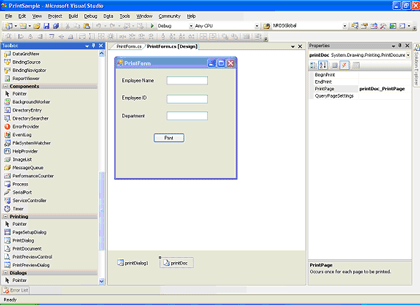
Open a new windows form project and add a new windows form. Include simple controls(label,textbox,button) on the form.From the toolbox,include PrintDialog,PrintDocument components in the form.

In the code behind
Include the following namespaces
The captured image is saved in jpeg format in the defined location.When the print functionality is used throughout an application and the image is not required to be stored, the existing image file is deleted and the new one created is streamed to print.If the image is required to be stored, the filename can be specified at runtime and stored in the given path.
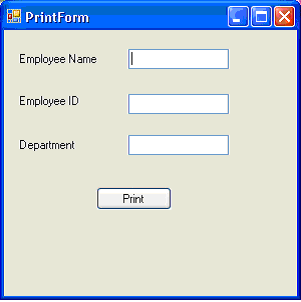
On running the application,the form is displayed as in the image below

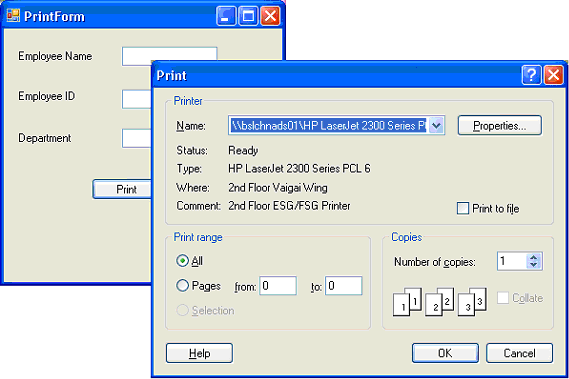
On click of the Print button, the Print dialog is displayed.

Vb.net has a PrintForm method but C# does not have inbuilt method for printing a windows form.The following procedure enables us to print a windows form at runtime in c#.net.The base concept involves the capture of the screen image of the windows form in jpeg format during runtime and printing the same on a event like Print button click.
Open a new windows form project and add a new windows form. Include simple controls(label,textbox,button) on the form.From the toolbox,include PrintDialog,PrintDocument components in the form.
In the code behind
Include the following namespaces
using System.Drawing.Imaging;and import the following .dll for the necessary GDI functions
using System.Drawing.Printing;
[System.Runtime.InteropServices.DllImportAttribute("gdi32.dll")]
The following code is placed in the declaration section of the form. The BitBlt function performs a bit-block transfer of the color data corresponding to a rectangle of pixels from the specified source device context into a destination device context.private System.IO.Stream streamToPrint;Select the PrintPage event of the PrintDocument component and include the following code in the event
string streamType;
private static extern bool BitBlt
(
IntPtr hdcDest, // handle to destination DC
int nXDest, // x-coord of destination upper-left corner
int nYDest, // y-coord of destination upper-left corner
int nWidth, // width of destination rectangle
int nHeight, // height of destination rectangle
IntPtr hdcSrc, // handle to source DC
int nXSrc, // x-coordinate of source upper-left corner
int nYSrc, // y-coordinate of source upper-left corner
System.Int32 dwRop // raster operation code
);
private void printDoc_PrintPage(object sender, System.Drawing.Printing.PrintPageEventArgs e)Include the following code in the Print Click event handler
{
System.Drawing.Image image = System.Drawing.Image.FromStream
this.streamToPrint;
int x = e.MarginBounds.X;
int y = e.MarginBounds.Y;
int width = image.Width;
int height = image.Height;
if ((width / e.MarginBounds.Width) > (height / e.MarginBounds.Height))
{
width = e.MarginBounds.Width;
height = image.Height * e.MarginBounds.Width / image.Width;
}
else
{
height = e.MarginBounds.Height;
width = image.Width * e.MarginBounds.Height / image.Height;
}
System.Drawing.Rectangle destRect = new System.Drawing.Rectangle(x, y, width, height);
e.Graphics.DrawImage(image, destRect, 0, 0, image.Width, image.Height, System.Drawing.GraphicsUnit.Pixel);
}
private void btnPrint_Click(object sender, EventArgs e)And the StatrtPrint method to customize the PrintDialog and print the stored image
{
Graphics g1 = this.CreateGraphics();
Image MyImage = new Bitmap(this.ClientRectangle.Width, this.ClientRectangle.Height, g1);
Graphics g2 = Graphics.FromImage(MyImage);
IntPtr dc1 = g1.GetHdc();
IntPtr dc2 = g2.GetHdc();
BitBlt(dc2, 0, 0, this.ClientRectangle.Width, this.ClientRectangle.Height, dc1, 0, 0, 13369376);
g1.ReleaseHdc(dc1);
g2.ReleaseHdc(dc2);
MyImage.Save(@"c:\PrintPage.jpg", ImageFormat.Jpeg);
FileStream fileStream = new FileStream(@"c:\PrintPage.jpg", FileMode.Open, FileAccess.Read);
StartPrint(fileStream, "Image");
fileStream.Close();
if (System.IO.File.Exists(@"c:\PrintPage.jpg"))
{
System.IO.File.Delete(@"c:\PrintPage.jpg");
}
}
public void StartPrint(Stream streamToPrint, string streamType)
{
     this.printDoc.PrintPage += new PrintPageEventHandler(printDoc_PrintPage);
     this.streamToPrint = streamToPrint;
     this.streamType = streamType;
     System.Windows.Forms.PrintDialog PrintDialog1 = new PrintDialog();
     PrintDialog1.AllowSomePages = true;
     PrintDialog1.ShowHelp = true;
     PrintDialog1.Document = printDoc;
     DialogResult result = PrintDialog1.ShowDialog();
     if (result == DialogResult.OK)
     {
         printDoc.Print();
         //docToPrint.Print();
     }
}
The captured image is saved in jpeg format in the defined location.When the print functionality is used throughout an application and the image is not required to be stored, the existing image file is deleted and the new one created is streamed to print.If the image is required to be stored, the filename can be specified at runtime and stored in the given path.
On running the application,the form is displayed as in the image below
On click of the Print button, the Print dialog is displayed.
Thursday, February 11, 2010
How to keep a form always on top in C#
public void MakeOnTop(Form myTopForm)
{
   myTopForm.TopMost = true;
}
Thursday, August 27, 2009
Set color of rows in XtraDatagrid in C#
Sometimes we need to set backcolor of row of XtraDatagrid.

I have found the solution of this problem. We should use RowStyle event of XtraDatagrid.
private void gridView1_RowStyle(object sender, DevExpress.XtraGrid.Views.Grid.RowStyleEventArgs e)
{
if (e.RowHandle >= 0)
{
DataRow DR = gridView1.GetDataRow(e.RowHandle);
if (DR["SEX"].ToString() == "Male")
e.Appearance.BackColor = System.Drawing.Color.LightGoldenrodYellow;
if (DR["Age"].ToString() < "20")
e.Appearance.BackColor = System.Drawing.Color.Bisque;
if (DR["OCCUPATION"].ToString() == "Engineer")
e.Appearance.BackColor = System.Drawing.Color.LightBlue;
// etc...
}
}

I have found the solution of this problem. We should use RowStyle event of XtraDatagrid.
private void gridView1_RowStyle(object sender, DevExpress.XtraGrid.Views.Grid.RowStyleEventArgs e)
{
if (e.RowHandle >= 0)
{
DataRow DR = gridView1.GetDataRow(e.RowHandle);
if (DR["SEX"].ToString() == "Male")
e.Appearance.BackColor = System.Drawing.Color.LightGoldenrodYellow;
if (DR["Age"].ToString() < "20")
e.Appearance.BackColor = System.Drawing.Color.Bisque;
if (DR["OCCUPATION"].ToString() == "Engineer")
e.Appearance.BackColor = System.Drawing.Color.LightBlue;
// etc...
}
}
To get a value of a cell of focused row of XtraDatagrid in C#
Before I used the code below to get cell value of XtraDatagrid.
string FirstName = gridView1.GetFocusedDataRow().ItemArray[2].ToString();
But in this case I must know the index of fields in Datasource. it is very difficult in very big tables.
Now I found very way to get a value of a cell of focused row of XtraDatagrid.
DataRow DR = gridView1.GetDataRow(gridView1.FocusedRowHandle);
string FirstName = DR["FIRSTNAME"].ToString();
string FirstName = gridView1.GetFocusedDataRow().ItemArray[2].ToString();
But in this case I must know the index of fields in Datasource. it is very difficult in very big tables.
Now I found very way to get a value of a cell of focused row of XtraDatagrid.
DataRow DR = gridView1.GetDataRow(gridView1.FocusedRowHandle);
string FirstName = DR["FIRSTNAME"].ToString();
Monday, January 26, 2009
Objects & Classes in C#
In this article we will understand some of the concepts of object-oriented programming in C# like objects and classes. To read this article you must have C# programming basics.
NOTE: read the whole article because there are some concepts you may will not get the best of it until you finish the article. And we will revisit all the concepts more than one time when I see it's appropriate in future articles so don't worry at all.
Introduction:
OOP stands for Object-Oriented Programming. OOP is relatively a new way to program computer applications. Before OOP programmers used to creating computer applications using procedural-programming (or structure-programming) but when OOP solved a lot of the problems of the procedural-programming so almost all of the programmers and developers began using OOP languages. In procedural- programming all the program functionality written in a few modules of code or maybe one module (depending on the program) and these modules depend on one another and maybe if you change a line of code you will have to rewrite the whole module again and maybe the whole program but in Object-Oriented Programming programmers write independent parts of a program called classes each class represent a part of the program functionality and these classes can be assembled to form a program and when you need to change some of the program functionality all what you have to do is to replace the target class which may contain a problem. So in OOP applications create by the use of classes and these applications can contain any number of classes. That will get us to discuss the Class and Object concept.
Classes and objects:
You may find it not easy to understand the class and object story but I will try to do my best explaining it. Actually the class and object concept is related to each other and some beginners don't care about understanding it clear so I think they will have a hard times learning C#.
Object-Oriented concept takes the most of its functionality from the real-life concepts. For example, I will discuss the concept of Classes and Objects of the world first and then you will understand the computer's Classes and Objects before I even write anything about it.
World's Classes and Objects:
In our world we have a classes and objects for those classes. Everything in our world considered to be an object. For example, people are objects, animals are objects too, minerals are objects, everything in the world are objects. Easy right ? but what about classes. In our world we have to differentiate between objects that we are living with. So we must understand that there are a classifications (this is how they get the name and the concepts of the Class) for all of those objects. For example, I'm an object, David is object too, Maria is another object so we are from a people class (or type). I have a dog called Ricky so it's an object, My friend's dog called Doby is also an object so they are from a Dogs class (or type). A third example, I have a computer Pentium III this is object, My friend have a computer Pentium IIII so this is another object and they are from a Computers class (or type). Now I think you got the concept of the Class and Object but let me crystallize it for you. In our world we have a classifications for objects and every object must be from some classification. so a Class is a way for describing some properties and functionalities or behaviors of a group of objects. In other words, The class considered to be a template for some objects. So maybe I will create a class called person so this is a template of the functionality and the properties of persons. I explained it by more than a way so wait until you see the first example and I think you will grasp it completely.
Computer's Classes and Objects:
Computer's Classes discussion is similar to what you grasp from the last section with some modifications to become computerized.
A C# Class Considered being the primary building block of the language. What I mean by the primary building block of the language is that every time you work with C# you will create Classes to form a program. We use Classes as a template to put the properties and functionalities or behaviors in one building block for some group of objects and after that we use that template to create the objects we need. For example, We need to have persons objects in our program so the first thing to do here is to create a Class called Person that contains all the functionalities or behaviors and properties of any person and after that we will use that Class or template to create as many objects as we need. Creating object of a specific class type called "instance of the class". Don't worry if you didn't grasp it 100% and don't worry if you don't know what's the Class and Object's properties and functionalities or behaviors because we still in the beginning and until now I didn't give any code examples. So let's take a brief of what's the Class and what's an object ?
The Class : Is a building block that contains the properties and functionalities that describe some group of objects, We can create a class Person that contains:
1- The properties of any normal person on the earth like : Hair Color, Age, Height, Weight, Eyes Color.
2- The functionalities or behaviors of any normal person on the earth like : Drink water, Eat, Go to the work and later we will see how we can implement the functionalities or behaviors and properties.
There are 2 kinds of classes : The built-it classes that come with the .NET Framework and called Framework Class Library. And the programmer defined-classes which we create it.
The class contains data (in the form of variables and properties) and behaviors (in the form of methods to process these data). We will understand this concept more later in the article.
When we declare a variable in a class we call it member variables or instance variables. The name instance come from the fact that when we create an object we instance a class to create that object so instance of a class means object of that class and instance variable means variable that exists in that class.
The Object : It's object of some classification (or class, or type. All means the same thing) and when you create the object you can specify the properties of that object. What I mean here is me as an object can have a different properties (Hair Color, Age, Height, Weight) of you as another object. For example, I have a brown eyes and you have a green eyes so when I create 2 objects I will specify a brown color for my object's Eyes Color property and I will specify a green color for your object's Eyes Color property.
So to complete my introduction to Classes we must discuss Properties and Variables.
Properties and Variables:
Variables declared in a class store the data for each instance, What that means ? means that when you instantiate this class (that is, When you create an object of this class) the object will allocate a memory locations to store the data of its variables. Let's take an example to understand it well.
class Person
{
public int Age;
public string HairColor;
}
This is our simple class which contains 2 variables. Don't worry about public keyword now because we will talk about it later . Now we will instantiate this class (that is, When you create an object of this class).
static void Main(string[] args)
{
Person Michael = new Person();
Person Mary = new Person();
// Specify some values for the instance variables
Michael.Age = 20;
Michael.HairColor = "Brown";
Mary.Age = 25;
Mary.HairColor = "Black";
// print the console's screen some of the variable's values
Console.WriteLine("Michael's age = {0}, and Mary's age = {1}",Michael.Age,
Mary.Age);
Console.ReadLine();
}
So we begin our Main method by creating 2 objects of Person type. After creating the 2 objects we initialize the instance variables for object Michael and then for object Mary. Finally we print some values to the console. here when you create Michael object C# compiler allocate a memory location for the 2 instance variables to put the values there. Also the same thing with Mary object the compiler will create 2 variables in the memory for Mary object. So each object now contains a different data. Note that we directly accessed the variables and we put any values we want, Right ? so maybe someone doesn't like me will put in my object's variable Age value of 120 years so I will not get any kind of jobs. But wait there are a solution for this problem. We will use properties.
Properties:
Properties is a way to access the variables of the class in a secure manner. Let's see the same example using properties.
class Person
{
private int age;
private string hairColor;
public int Age
{
get
{
return age;
}
set
{
if(value <= 65 && value >= 18)
{
age = value;
}
else
age = 18;
}
}
public string HairColor
{
get
{
return hairColor;
}
set
{
hairColor = value;
}
}
}
I made some modifications but please just care about the new 2 properties that I created it here. So the property consists of 2 accessor. The get accessor which is responsible of retrieving the variable value, And the set accessor which is responsible of modifying the variable's value. So The get accessor code is very simple we just use the keyword return with the variable name to return its value. so the following code:
get
{
return hairColor;
}
return the value stored in hairColor.
Note :the keyword value is a reserved keyword by C# (that is, reserved keywords means that these keywords own only by C# and you can't create it for other purpose. For example, You can't create a variable called value .If you did that C# compiler will generate an error and to make things easier Visual Studio.NET will color the reserved keywords to blue.)
Let's put this code at work and after that discuss the set accessor.
static void Main(string[] args)
{
Person Michael = new Person();
Person Mary = new Person();
// Specify some values for the instance variables
Michael.Age = 20;
Michael.HairColor = "Brown";
Mary.Age = 25;
Mary.HairColor = "Black";
// print the console's screen some of the variable's values
Console.WriteLine("Michael's age = {0}, and Mary's age = {1}",Michael.Age,
Mary.Age);
Console.ReadLine();
}
Here I created the same objects from last example the modifications that I used only properties to access the variable instead of access it directly. Look at the following line of code
Michael.Age = 20;
When you assign a value to the property like that C# will use the set accessor. The great thing with the set accessor is that we can control the assigned value and test it and maybe change to in some cases. When you assign a value to a property C# change the value in a variable and you can access the variable's value using the reserved keyword value exactly as I did in the example. Let's see it again here.
set
{
if(value <= 65 && value >= 18)
{
age = value;
}
else
age = 18;
}
Here in the code I used if statement to test the assigned value because for some reason I want any object of type Person to be in age between 18 and 65. Here I test the value and if it in the range then simply I will store it in the variable age and it it's not in the range I will put 18 as a value to age. It was just a simple example for the properties but there is a complete article about properties soon.
How we create objects and classes ?
We create classes by define it like that:
using the keyword class followed by the class name like that
class Person
then we open a left brace "{" and after we write our methods and properties we close it by a right brace "}". That's how we create a class. Let's see how we create an instance of that class.
In the same way as we declare a variable of type int we create an object variable of Person type with some modifications:
int age;
Person Michael = new Person();
In the first line of code we specified integer variable called age. In the second line we specified first the type of Object we need to create followed by the object's name followed by a reserved operator called new and we end by typing the class name again followed by parenthesis "()".
Let's understand it step-by-step. Specifying the class name at the beginning tell the C# Compiler to allocate a memory location for that type (C# compiler knows all the variables and properties and methods of the class so it will allocate the right amount of memory). Then we followed the class name by out object variable name that we want it. The rest of the code "= new Person();" call the object's constructor. We will talk about constructor later but for now understand that the constructor is a way to initialize your object's variable while you are creating it not after you create it. For example, The Michael object we created it in the last section can be written as following :
Person Michael = new Person(20, "Brown");
here I specified the variable's values in the parameter list so I initialized the variables while I'm creating the object. But for this code to work we will need to specify the constructor in the Person class and I will not do that here because constructor section will come in later articles. I think you got a good introduction about Classes and Objects not I will complete in in my next article and I will talk about constructors and building block scoping. I hope you got a new thing from my article.
Wednesday, January 7, 2009
Calculates first 20000 prime numbers in C#
using System;
namespace Primes
{
class Program
{
static void Main(string[] args)
{
ListPrimes();
Console.ReadKey();
}
//Translation from Modula-2 to C#
//See N.Wirth "Programming in Modula-2, second ed."
public static void ListPrimes()
{
const uint N = 2000;
const uint M = 45; //+- sqrt(N)
const uint LL = 10; //no. of primes placed on a line
uint i, k, x = 1, inc = 4, lim = 1, square = 9, L = 0;
bool prime;
uint[] V = new uint[M];
uint[] P = new uint[M];
for (i = 3; i <= N; i++)
{
do //find next prime number p[i]
{
x = x + inc;
inc = 6 - inc;
if (square <= x)
{
lim++;
V[lim] = square;
square = P[lim + 1] * P[lim + 1];
}
k = 2; prime = true;
while (prime && (k < lim))
{
k++;
if (V[k] < x) V[k] = V[k] + 2 * P[k];
prime = x != V[k];
}
}
while (!prime);
if (i < M) P[i] = x;
Console.Write("{0,7}",x);
L++;
if (L == LL)
{
Console.WriteLine(); L = 0;
}
}
}
}
}
namespace Primes
{
class Program
{
static void Main(string[] args)
{
ListPrimes();
Console.ReadKey();
}
//Translation from Modula-2 to C#
//See N.Wirth "Programming in Modula-2, second ed."
public static void ListPrimes()
{
const uint N = 2000;
const uint M = 45; //+- sqrt(N)
const uint LL = 10; //no. of primes placed on a line
uint i, k, x = 1, inc = 4, lim = 1, square = 9, L = 0;
bool prime;
uint[] V = new uint[M];
uint[] P = new uint[M];
for (i = 3; i <= N; i++)
{
do //find next prime number p[i]
{
x = x + inc;
inc = 6 - inc;
if (square <= x)
{
lim++;
V[lim] = square;
square = P[lim + 1] * P[lim + 1];
}
k = 2; prime = true;
while (prime && (k < lim))
{
k++;
if (V[k] < x) V[k] = V[k] + 2 * P[k];
prime = x != V[k];
}
}
while (!prime);
if (i < M) P[i] = x;
Console.Write("{0,7}",x);
L++;
if (L == LL)
{
Console.WriteLine(); L = 0;
}
}
}
}
}
Tuesday, January 6, 2009
Notify Icon in System Tray with Context Menu Using C#
namespace NotifyIcon
{
     public partial class Form1 : Form
     {
          public Form1()
          {
               InitializeComponent();
          }
          private void Form1_Load(object sender, EventArgs e)
          {
               Use_Notify(); // Setting up all Property of Notifyicon
          }

          private void Use_Notify()
          {
               MyNotify.ContextMenuStrip = contextMenuStrip1;
               MyNotify.BalloonTipText = "This is A Sample Application";
               MyNotify.BalloonTipTitle = "Your Application Name";
               MyNotify.ShowBalloonTip(1);
          }

          private void Form1_Resize(object sender, System.EventArgs e)
          {
               // Hide The Form when it's minimized
               if (FormWindowState.Minimized == WindowState)
                    Hide();
          }

          private void MyNotify_DoubleClick(object sender, System.EventArgs e)
          {
               // Show the form when Dblclicked on Notifyicon
               Show();
               WindowState = FormWindowState.Normal;
          }

          private void closeToolStripMenuItem_Click(object sender, EventArgs e)
          {
               // Will Close Your Application
               MyNotify.Dispose();
               Application.Exit();
          }

          private void restoreToolStripMenuItem_Click(object sender, EventArgs e)
          {
               //Will Restore Your Application
               Show();
               WindowState = FormWindowState.Normal;
          }

          private void settingsToolStripMenuItem_Click(object sender, EventArgs e)
          {
               //Settings 1
               MessageBox.Show("Your Application Settings 1");
          }

          private void settings2ToolStripMenuItem_Click(object sender, EventArgs e)
          {
               //Settings 2
               MessageBox.Show("Your Application Settings 2");
          }
     }
}
Monday, December 29, 2008
Check if the Internet Connection State is active inC#
A small application which uploads Images of new products and therefore I had to check if the Internet Connection State is active, otherwise it would crash. There are actually two ways (and probably more) of doing this, depending on your system. You could go with a direct api call:
[DllImport("wininet.dll")]
       private extern static bool InternetGetConnectedState(out int Description, int ReservedValue);

       //Creating a function that uses the API function...
       public static bool IsConnectedToInternet()
       {
           int Desc;
           return InternetGetConnectedState(out Desc, 0);
}Another way would be resolving some host of which you are sure it is online all the time. That could be microsoft.com, your company’s website or something else. Here we go:
public static bool IsConnected()
       {
           System.Uri Url = new System.Uri("http://www.microsoft.com");

           System.Net.WebRequest WebReq;
           System.Net.WebResponse Resp;
           WebReq = System.Net.WebRequest.Create(Url);

           try
           {
               Resp = WebReq.GetResponse();
               Resp.Close();
               WebReq = null;
               return true;
           }

           catch
           {
               WebReq = null;
               return false;
           }
       }
How to resize Workarea of desktop in C#
public struct Rect
{
public Int32 Left, Top, Right, Bottom;
}
The code below is that the workarea is reduced by the height of Form and the Form is placed bottom of the workarea. It is like application of Cash Fiesta6
private void button1_Click(object sender, EventArgs e)
{
Rect DeskArea = new Rect();
SystemParametersInfo(48/*SPI_GETWORKAREA*/, 0, ref DeskArea, 2/*SPIF_SENDCHANGE*/);
this.Left = 0;
this.Width = DeskArea.Right;
this.Top = DeskArea.Bottom - this.Height - 4;
DeskArea.Bottom = DeskArea.Bottom - 150;
SystemParametersInfo(47/*SPI_SETWORKAREA*/, 0, ref DeskArea, 2/*SPIF_SENDCHANGE*/);
}
And now you need to replace the orkarea to its original size.
private void button2_Click(object sender, EventArgs e)
{
Rect DeskArea = new Rect();
SystemParametersInfo(48/*SPI_GETWORKAREA*/, 0, ref DeskArea, 2/*SPIF_SENDCHANGE*/);
DeskArea.Bottom = DeskArea.Bottom + 150;
SystemParametersInfo(47/*SPI_SETWORKAREA*/, 0, ref DeskArea, 2/*SPIF_SENDCHANGE*/);
}
{
public Int32 Left, Top, Right, Bottom;
}
The code below is that the workarea is reduced by the height of Form and the Form is placed bottom of the workarea. It is like application of Cash Fiesta6
private void button1_Click(object sender, EventArgs e)
{
Rect DeskArea = new Rect();
SystemParametersInfo(48/*SPI_GETWORKAREA*/, 0, ref DeskArea, 2/*SPIF_SENDCHANGE*/);
this.Left = 0;
this.Width = DeskArea.Right;
this.Top = DeskArea.Bottom - this.Height - 4;
DeskArea.Bottom = DeskArea.Bottom - 150;
SystemParametersInfo(47/*SPI_SETWORKAREA*/, 0, ref DeskArea, 2/*SPIF_SENDCHANGE*/);
}
And now you need to replace the orkarea to its original size.
private void button2_Click(object sender, EventArgs e)
{
Rect DeskArea = new Rect();
SystemParametersInfo(48/*SPI_GETWORKAREA*/, 0, ref DeskArea, 2/*SPIF_SENDCHANGE*/);
DeskArea.Bottom = DeskArea.Bottom + 150;
SystemParametersInfo(47/*SPI_SETWORKAREA*/, 0, ref DeskArea, 2/*SPIF_SENDCHANGE*/);
}
Friday, December 26, 2008
Hiding application from taskbar in C#
public class TaskbarAnother very easy way:
{
[DllImport( "user32.dll" )]
private static extern int FindWindow( string className, string windowText );
[DllImport( "user32.dll" )]
private static extern int ShowWindow( int hwnd, int command );
private const int SW_HIDE = 0;
private const int SW_SHOW = 1;
protected static int Handle
{
get
{
return FindWindow( "Shell_TrayWnd", "" );
}
}
private Taskbar()
{
// hide ctor
}
public static void Show()
{
ShowWindow( Handle, SW_SHOW );
}
public static void Hide()
{
ShowWindow( Handle, SW_HIDE );
}
}
this.ShowInTaskbar = false;
Saturday, December 20, 2008
Another resource for Multithreading in C#
Introduction:
In this article let us see about multithreading. Multithreaded applications provide the illusion that numerous activities are happening at more or less the same time. In C# the System.Threading namespace provides a number of types that enable multithreaded programming.
Threading in C#
System.Threading Namespace
The System.Threading Namespace provides a number of types that enable multi-threading programming. In addition to providing types that represent a particular thread, this namespace also describe types that can handle a collection of threads (Thread Pool), a simple (Non -GUI based) Timer class and several types to provide synchronized access to shared data.
The most primitive of all types in the System.Threading namespace is Thread. Thread:
Represents a thread that executes with in the CLR. Using this type, one can able to spawn additional threads in the owning AppDomain.This type defines a number of methods (both static and shared) that allow us to create new threads from a current thread, as well as suspend, stop, and destroy a given thread.
The following example will demonstrate Spawning of Secondary threads using C#.
internal class EmployeeClass
{
public void Performjob()
{

 // Get some information about the thread.

 Console.Writeline("ID of Employee thread is {0}",
 Thread.CurrentThread.GetHashCode() );

 //Do the job.
 Console.write("Employee says:");
 for (int i=0;i<10;i++)
 {
  Console.write(i +",");
 }
 console.writeline();
}
}
The above code simply prints out a series of numbers by way of the performjob() member function. Now assume that a class (Main class) creates a new instance of EmployeeClass. In order for the Main class to continue processing its workflow, it creates and starts a new thread that is used by the job. In the code below, notice that Thread type requests a new Threadstart delegate type:
Public class Mainclass
{
public static int Main (string[] args)
{
 Console.Writeline("ID of primary thread is {0}",
 Thread.CurrentTHread.GetHashCode() );

 // Make Employee class.

 EmployeeClass j = new EmployeeClass();

 // Now make and start the background thread.

 Thread backgroundThread =
 new Thread(new ThreadStart(j.Performjob));
 backgroundThread.Start();
 return 0;
}
}
If we run the application we would find the following result. ID of primary thread is: 2
ID of Employee thread is: 11
Employee says: 0, 1, 2, 3, 4, 5, 6, 7, 8, 9,
Press any key to continue
From the above example one can easily know how to spawning the secondary Threads. Let us see another example regarding two active threads.
internal class EmployeeClass
{
public void Performjob()
{
 // Get some information about the thread.

 Console.Writeline("ID of Employee thread is {0}",
 Thread.CurrentThread.GetHashCode() );

 //Do the job.
 Console.write("Employee says:");
 for (int i = 0; i < 20000 ; i++)
 {
  Console.write(i +",");
 }
 console.writeline();
}
}

Public class Mainclass
{
public static int Main (string[] args)
{
 // Make Employee class
 ............
 //Now make the thread.
 ............
 //Now while background thread is working
 //do some additional work.
 MessageBox.show("BUSY");
 return(0);
}
}
If we run this application we would see that the message box is displayed and it can be moved around the desktop, while the background Employee thread is busy pumping numbers to the console. Thread Synchronization:
A multithreaded application usually has resources that can be accessed from multiple threads; for example, a global variable that is incremented or decremented by multiple threads. It is sometimes desirable to prevent multiple threads from concurrently altering the state of a resource. The .NET Framework includes several classes and data types that we can use to synchronize actions performed by two threads.
The simplest case is if we have a shared variable that we need to update from different threads. To do this, we can use the System.Threading.Interlocked class. For example, to increment or decrement the shared variable called num, we'd write Interlocked.Increment(num) or Interlocked.Decrement(num). we can also use Interlocked to set the variables to a specific value or to check the equality of two variables.
If there's a section of code in an object's method that should not be accessed concurrently by multiple threads, we can use the Monitor class to acquire a lock on that object by calling Monitor.Enter(object). Any other thread wanting to execute the same code would need to acquire the same lock and will be paused until the first thread releases the lock by calling Monitor. Exit(object).
For more control over thread synchronization or for cross-process synchronization, use the Mutex class, which is a named synchronization object that can be obtained from any thread in any process. Once we create or obtain the mutex, we use its GetHandle method to (as we'd expect) get a handle that we can use with the WaitHandle.WaitAny or WaitHandle.WaitAll methods. These two methods are blocking and will return only if the specified handle is signaled (that is, the mutex is not being used by another thread) or if the specified timeout expires. After we obtain the mutex, we perform the necessary synchronized processing and then call Mutex.ReleaseMutex to release it.
Sometimes we need a mechanism for one thread to notify other threads of some interesting event that occurred. In those cases we can use the .NET synchronization event classes, ManualResetEvent and AutoResetEvent. In the world of thread synchronization, an event is an object that has two states: signaled and nonsignaled. An event has a handle and can be used with WaitHandle just like a mutex. A thread that waits for an event will be blocked until another thread signals the event by calling ManualResetEvent.Set or AutoResetEvent.Set. If we are using a ManualResetEvent, we must call its Reset method to put it back to the nonsignaled state. An AutoResetEvent will automatically go back to nonsignaled as soon as a waiting thread is notified that the event became signaled.
Conclusion:
That's all it takes to create a multi-threaded application in C#.The System.Threading namespace in .NET SDK makes multi-threading easy.The System.Threading Namespace provides a number of types that enable multi-threading programming easily in C#. The Thread class in the System.Threading namespace exposes the properties and methods to allow the free threading.
Multithreading in C#
Any Windows application must have one or more processes. A Process is structural unit with a memory block and using some set of resources. For each executable, the Windows operating system creates some isolated memory block. This C# .Net Tutorial tries to explain the basics of Multithreading in C# .Net.
Every process must have at least one thread. The first thread is created with a process and is known as primary thread. This Primary Thread is entry point of application. In traditional Windows applications it is the method WinMain() and in console applications it is named main().
Main goal of creating multithreading application is performance improvement. As an example, imagine a situation where in a user starts a long process (e.g. copying), he can?t use a single threaded application and wait for an infinite time for the operation to get completed. But if he uses multi?threading application he can set copying process in the background and interact with application without any problems.
At first, if one wants to create a multi-threaded application an important point to be remembered is, a global variable, which is being accessed by different threads, can try to modify the same variable. This is a generic problem, which is solved using a mechanism called Synchronization of threads. Synchronization is nothing but the process of creating some set of rules to operate data or resources.
The C# .Net language has a powerful namespace which can be used for programming with Threads as well as Thread Synchronization in C# .Net programming. The name of the namespace is Sytem.Threading. The most important class inside this namespace for manipulating the threads is the C# .Net class Thread. It can run other thread in our application process.
Sample program on C# Multithreading - C# Tutorial:
The example it creates an additional C# .Net class Launcher. It has only one method, which output countdown in the console.
//Sample for C# tutorial on Multithreading using lock
public void Coundown()
{lock(this)
{for(int i=4;i>=0;i--)
{Console.WriteLine("{0} seconds to start",i);
}
Console.WriteLine("GO!!!!!");
}
}
There is a new keyword lock inside the above chunk of .Net C# tutorial code. This provides a mechanism for synchronizing the thread operation. It means at the same point of time only one thread can access to this method of created object. Unless the lock is released after completion of the code, the next routine or iteration cannot enter the block.
To understand it more clearly please have a look at the piece of main method?s code:
Launcher la = new Launcher();
Thread firstThread = new Thread(new ThreadStart(la.Coundown));
Thread secondThread =new Thread(new ThreadStart(la.Coundown));
Thread thirdThread = new Thread(new ThreadStart(la.Coundown));
firstThread.Start();
secondThread.Start();
thirdThread.Start();
As you see there were created three additional threads. These threads start a method of object that has Launcher type. The above program is a very simple example of using multi-threading in C#. Net. But C# .Net allows us to create more powerful applications with any level of complexity.
At last a few words about attached example. It can be compiled using Microsoft .NET command line. Just type csc filename.cs. After it CSC compiler creates an executable version of your code, since it can be run as standard exe file.
Subscribe to:
Posts (Atom)

